Anti-Nuke
The Anti-Nuke system monitors your server for destructive actions and automatically reverts them when suspicious activity is detected. You can configure thresholds, whitelist trusted members, and assign admins to manage the module.
Allowing users to configure the antinuke
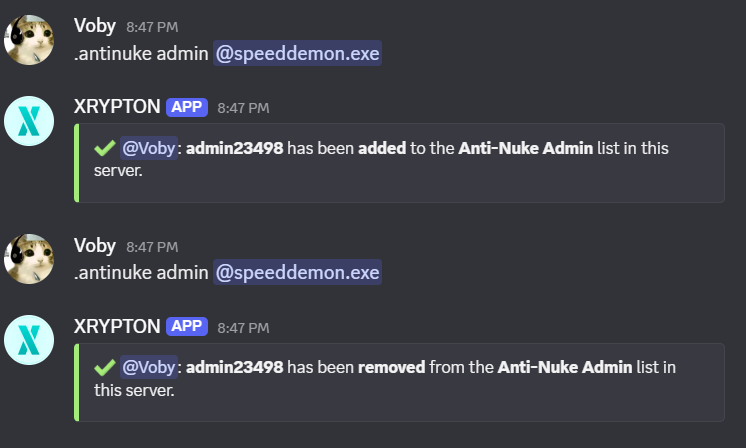
Designate trusted members as Anti-Nuke admins. Only admins can change the antinuke configuration, manage whitelists, and view logs.
,antinuke admin <user> — grants a user antinuke admin permissions.
Arguments: user — Discord User
Exempting users from the antinuke
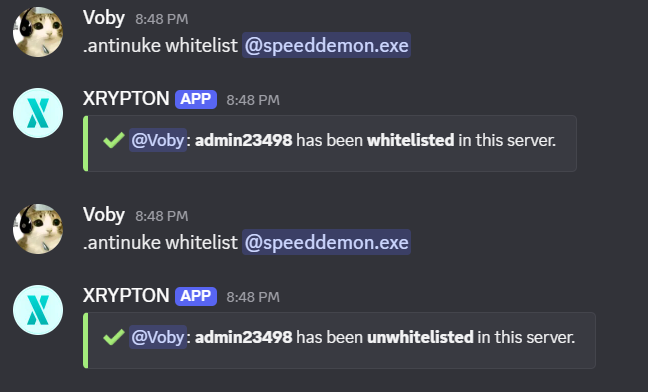
Whitelist members so their actions are never flagged by the Anti-Nuke system. This is useful for server owners and trusted staff with high-level permissions.
,antinuke whitelist <user> — whitelist a user.
,antinuke whitelist remove <user> — remove a user from the whitelist.
Arguments: user — Discord User
Viewing the antinuke configuration
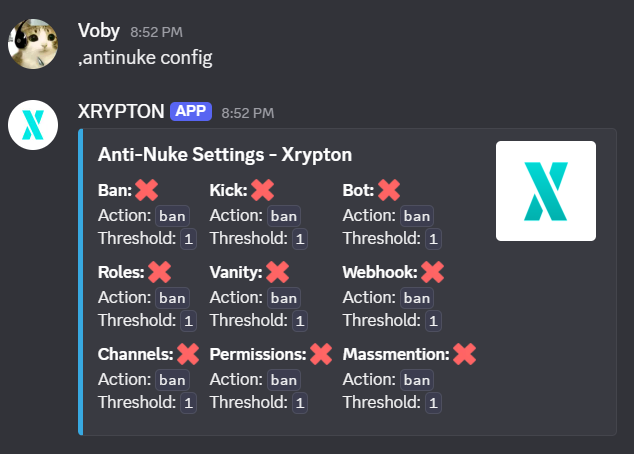
Check the current Anti-Nuke settings, including action thresholds, punishment mode, and which channels are protected.
,antinuke config — displays the current Anti-Nuke configuration.
Arguments: none
Viewing users with antinuke admin
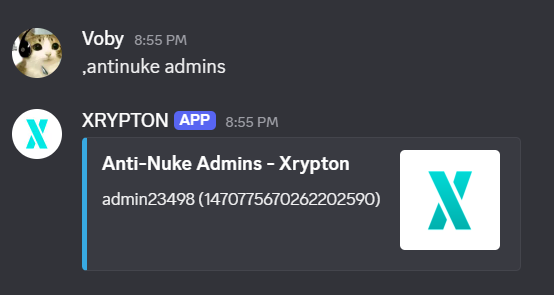
See all members who have been granted Anti-Nuke admin access.
,antinuke admins — lists all Anti-Nuke admins.
Arguments: none
Join Gate
The Join Gate module protects your server from mass-join raids by monitoring join patterns and automatically acting when suspicious activity is detected.
Setting up mass-join protection
Use the ,antiraid massjoin command group to configure how many users can join within a specific time window before the raid protection triggers.
1
Run ,antiraid massjoin enable --do <action> --threshold <number> to enable mass-join protection.
Arguments:
--do — action to take: kick or ban
--threshold — number of joins allowed before triggering (e.g. 5)
2
Set the join threshold (e.g. 5 joins) and the time window (e.g. 10 seconds).
3
Choose an action: lock the server, kick new joins, or assign a quarantine role.
,antiraid massjoin disable — disables mass-join protection.
Arguments: none
Fake Permissions
Fake Permissions lets you lock down dangerous Discord permissions that can be exploited through the API. With one command, you can strip risky permissions from all roles and keep your server secure.
Getting command permissions
To use the Fake Permissions commands, you need the Manage Roles permission or higher. Make sure your role is positioned above the roles you want to modify in the server settings.
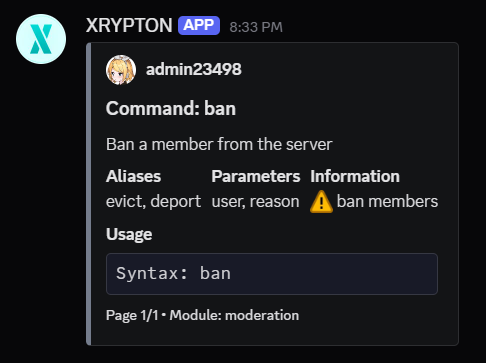
Using Fake Permissions
Fake Permissions provides the following commands to manage dangerous permissions on roles:
,fakeperms add <role> <permission> — adds a fake permission to a role.
Arguments: role — Discord Role, permission — permission name (e.g. administrator, manage_webhooks)
,fakeperms list <role> — lists all fake permissions assigned to a role.
Arguments: role — Discord Role
,fakeperms remove <role> <permission> — removes a fake permission from a role.
Arguments: role — Discord Role, permission — permission name
,fakeperms perms — shows a paginated list of all valid permission names you can use.
Arguments: none